
Tasks & Time Blocks: Plan Your Day Without Guilt
Most task managers make you feel guilty. You set times, you miss them, you feel bad. Keepsake takes a different approach: time blocks are sequential, not scheduled. You work through them one by one. If something takes longer, everything shifts — no guilt, no rescheduling needed.
The time block philosophy
Sequential, not scheduled
Time blocks are a queue. You do the first one, then the next, then the next. No fixed times means no missed appointments with yourself.
Finish early = free time
If you finish a 2-hour block in 90 minutes, you've earned 30 minutes of freedom. There's no guilt because you're ahead of schedule.
Need more time = just shift
If something takes longer than expected, the remaining blocks shift automatically. Tomorrow's tasks stay tomorrow's tasks — no cascade of rescheduling.
Tip
This approach is inspired by how makers actually work: in focused chunks, one thing at a time, with natural breaks between tasks.
Create a task
From QuickNotes with T+
Type your task in the QuickNote bar and add T+0 (today), T+1 (tomorrow), T+7 (next week), T+ASAP (urgent), or T+? (someday) at the end. Press Enter — done.
From the Day view
Click the + button in the Day view to create a task directly. You can set the title, date, and estimated duration.
From a contact profile
Create a task linked to a person directly from their contact profile. The task will show in your Day view and on their profile.
Shortcut
T+0 = today, T+1 = tomorrow, T+7 = next week, T+ASAP = urgent, T+? = someday
Edit tasks inline
Click to expand
Click on a task card to expand it. The title and description become editable right where they are.
Use the toolbar
An inline toolbar appears with quick actions: set a date, add recurrence, delete the task, or collapse it back. Everything is one tap away.
Auto-save on collapse
When you click outside the task or tap another task, your changes are saved automatically. No save button needed — just edit and move on.
Tip
This inline editing style is inspired by Things. It keeps you in flow — you can quickly update multiple tasks without ever leaving the list.
Organize with sections
Create a section
On a tag page, click the section button to add a new section header. Give it a name like "Morning", "Admin", or "Waiting for".
Add an optional description
Each section can have a short description that appears below the header. Use it to add context or instructions.
Collapse and expand
Click the chevron on a section header to collapse or expand it. Empty sections are automatically collapsed and pushed to the bottom to keep things tidy.
Drag to reorder
Drag tasks between sections or reorder sections themselves. The order is saved automatically.
Tip
Sections are great for project pages. Create sections like "To Do", "In Progress", and "Done" to track work visually.
The Day view: your daily cockpit
See your day at a glance
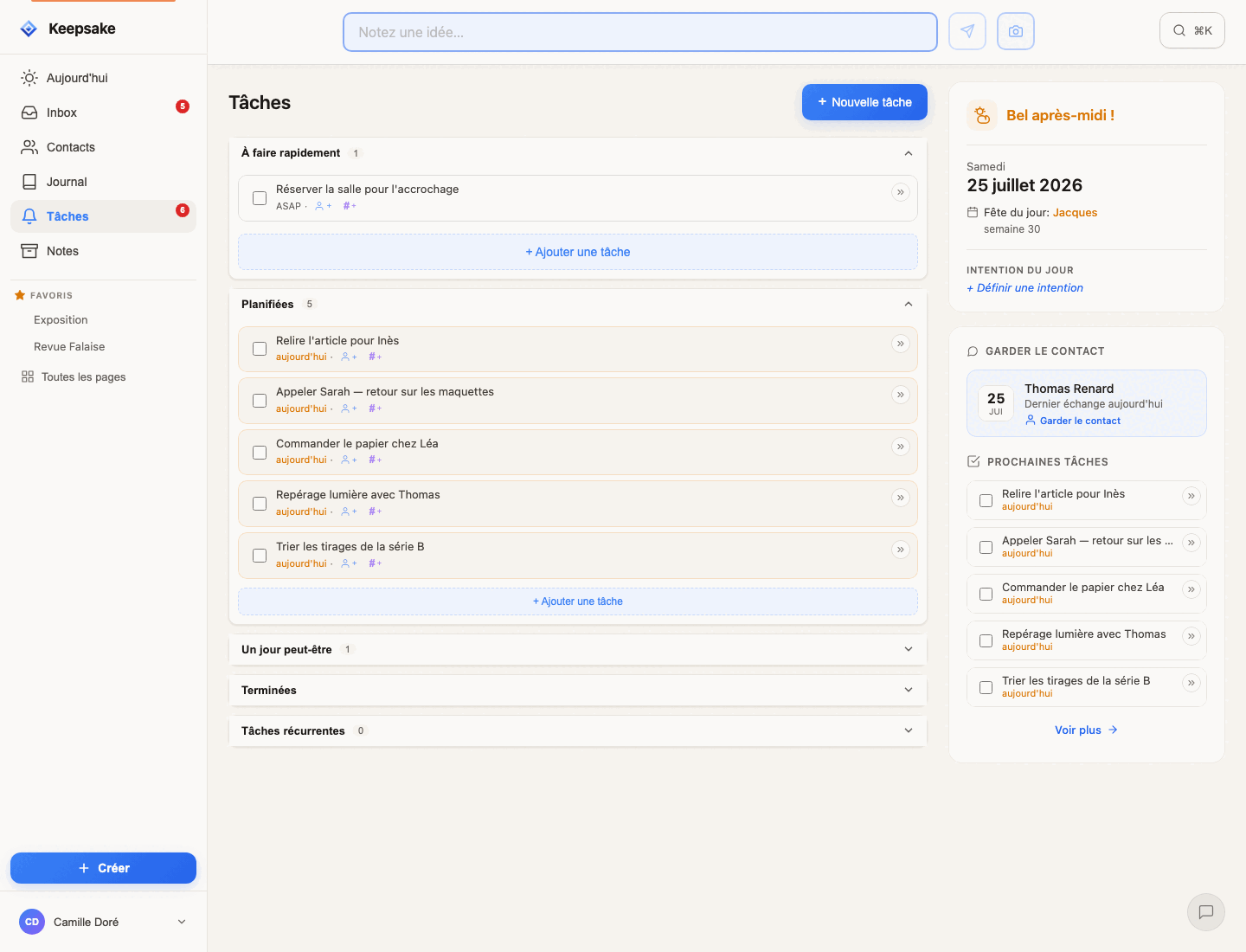
Tasks appear as cards in sequence. Each card shows the task title, its time if it has one, and any linked contacts or tags.
Drag to reorder
Change the order of your tasks by dragging cards up or down. The sequence updates instantly — and the order is the priority: keep the most important task on top.
Mark as done
Check off completed tasks. They move to a "Done" section at the bottom so you can see your progress throughout the day.
Tip
Start each day by reviewing your Day view. Take 2 minutes to reorder tasks based on your energy and priorities. Morning you knows better than last-night you.
Give a task a time (optional)
Set the time
When creating or editing a task with a specific date, fill the Time (optional) field — and adjust the duration if you like (15 minutes by default). The quick calendar popover on any task card offers the same fields.
See it everywhere
The time appears next to the date on every task list — "Jul 22 · 14:30" — so a timed commitment is never a surprise.
It anchors on the timeline
On the Day view's timeline, a timed task appears as a card anchored at its hour. Use Remove time to unplan it — it simply returns to the day's tasks block.
Tip
Reserve times for real appointments — a call, a delivery, a meeting. For everything else, the order of your list is a better plan than a fake schedule.
Reschedule and postpone
The reschedule button (>>)
On every task card, look for the small >> icon. Tap it to open the reschedule menu with all available options. It's always there, whether you're on desktop or mobile.
Quick date options
The menu offers smart shortcuts: ASAP (moves to top priority), Today, Tomorrow, Next Monday, In one week, First of next month, In one month, In six months, Start of next year, or In one year. Pick one and the task is rescheduled instantly.
Custom date
Need a specific date? Choose "Pick a date..." at the bottom of the menu to open a date picker and select any date you want.
"One day maybe"
Not sure when you'll do it? Select "One day maybe" to move the task out of your daily view. It stays in your task list but won't clutter your day — perfect for ideas you want to keep without committing to a date.
Tip
It's okay to postpone tasks. The guilt comes from rigid systems, not from the postponing itself. Keepsake is designed around the reality that plans change. Use the >> button freely — it's there to help you stay flexible.
Link tasks to contacts
Mention with @
Type @name in the task title or description to link it to a contact. The task appears on their profile timeline.
Create from a profile
When viewing a contact's profile, create a task directly. It's automatically linked to that person.
See pending tasks per contact
Contact profiles show all pending tasks linked to that person. Great for preparing before a meeting or call.
Tip
Linking tasks to contacts is powerful for relationship management. "Call @John about the proposal" creates both a task and a relationship touchpoint.
Recurring tasks
Create a recurring template
When creating or editing a task, enable recurrence and choose the interval: every X days, weeks, months, or years. Keepsake creates a template that generates tasks automatically.
Two recurrence modes
Fixed date ("Regularly"): the task appears on a fixed schedule regardless of completion — like rent on the 1st. After completion: the next occurrence is created only after you complete the current one — like "water the plants every 3 days" where the timer resets each time.
Tasks appear on future days
Navigate to any future day and your recurring tasks are already there, waiting for you. They appear automatically based on the schedule you set — no need to create them manually each time.
Overdue catch-up
If you don't open Keepsake for a few days, missed recurring tasks (up to 7 days) will appear in your today view so nothing slips through the cracks.
Tip
Recurring tasks are powerful for building habits and routines. Start with 2-3 recurring templates and add more as you discover what patterns exist in your life.
Related guides
Organize your day in time blocks
Plan your day as a sequence of time blocks in Keepsake's Day timeline. Set your wake and bed times, stack blocks with durations, anchor tasks to a time — hours compute themselves and adjust as your day evolves.
Capture Ideas Instantly with QuickNotes
Learn how to use QuickNotes to capture thoughts, ideas, and reminders in seconds. Works offline, syncs automatically, and connects to your contacts.
Contact Profiles: Your Relational Memory
Learn how Keepsake's Contact Profiles work as your relational memory. Track interactions, set reminders, and build a complete picture of every relationship.
Organize Everything with Tags & Pages
Learn how to use Tags & Pages in Keepsake to organize notes, tasks, and contacts into flexible projects. No upfront setup — projects emerge naturally from your content.
Format Your Notes with Markdown
Learn how to use Markdown in Keepsake to format your notes with bold, lists, checkboxes, headers, and more. Simple syntax guide for beginners.
Calendar Sync: See Your Tasks in Any Calendar App
Subscribe to your Keepsake tasks in Apple Calendar, Google Calendar, Outlook, or any calendar app via a webcal feed. Your tasks appear as events — always up to date.
Was this article helpful?
Something missing? Suggest an improvement
Ready to try Keepsake?
Start organizing your relationships, notes, and tasks today. Free for 30 days.
One click — you're in. No credit card. 30 days free.