
Capture Ideas Instantly with QuickNotes
QuickNotes is designed around one principle: zero friction between your thought and its capture. The note bar appears instantly — even before the rest of the app loads — so you never lose an idea because the interface was too slow. A QuickNote isn't only text: the photo button captures what you see just as fast — see adding photos to your notes. Learn more about the philosophy behind QuickNotes on our feature page.
Capture a note
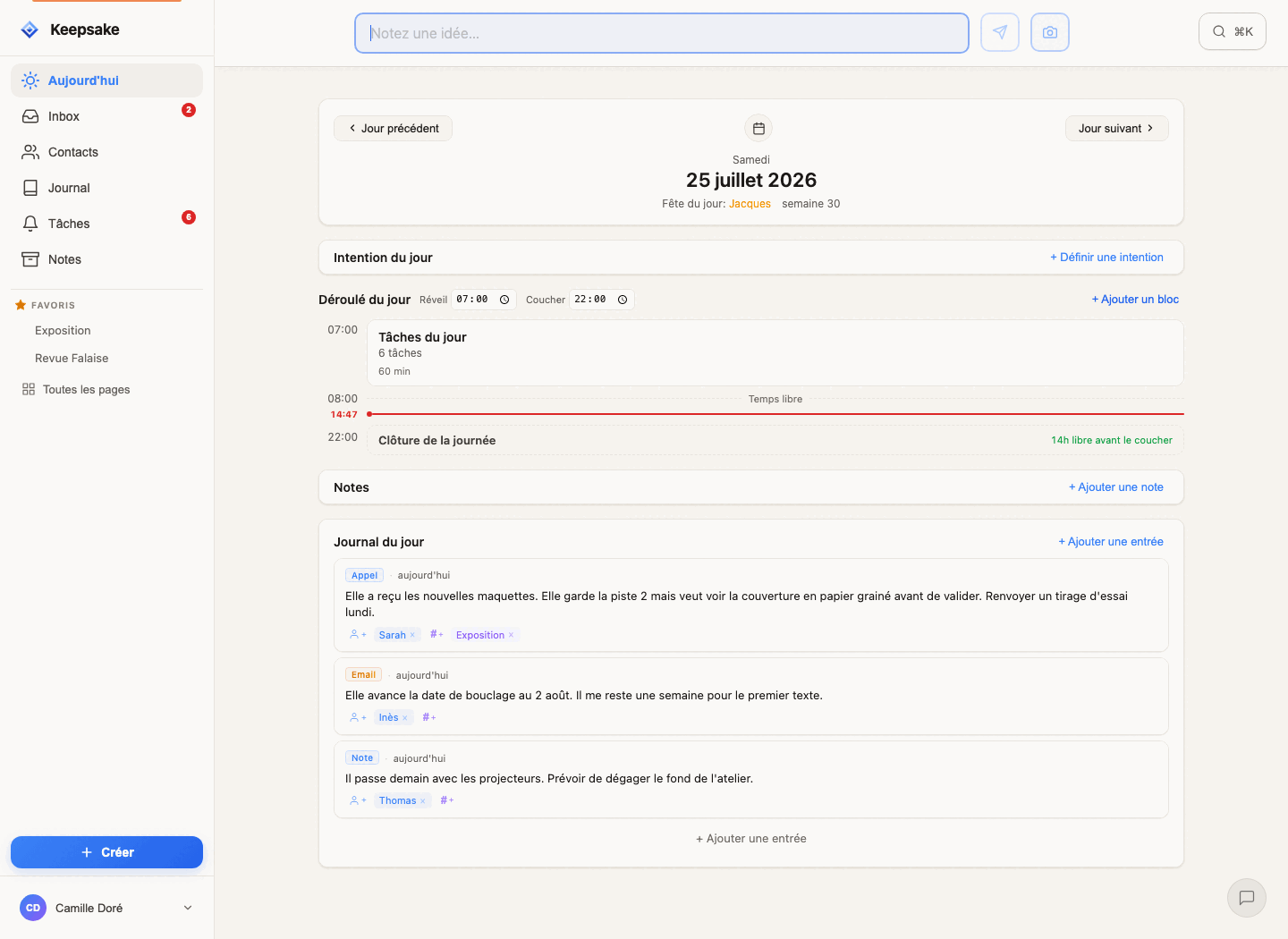
Click the note bar
The QuickNote bar is visible on every screen. Click it to start typing immediately.
Write your thought
Type whatever comes to mind — there's no minimum or maximum length. A single word or a full paragraph, it all works.
Press Enter to save
Your note is saved instantly to your inbox. You can find it later, organize it, or link it to a contact.
Tip
Don't overthink it. QuickNotes are meant to be raw, fast, unpolished. Capture first, organize later. That's the whole philosophy.
Capture notes with your voice
iPhone / iPad
Tap the QuickNote bar so your keyboard appears. Then tap the microphone icon at the bottom-right of the keyboard. Speak your note, and iOS will transcribe it into text. Tap the microphone icon again to stop, then press Enter to save your note.
Android
Tap the QuickNote bar to open the keyboard. Tap the microphone icon on your keyboard (usually at the top-right on Gboard). Speak your note, and Android will transcribe it. When you're done, tap the microphone again, then press Enter to save.
Mac
Click the QuickNote bar, then press the Fn key twice (or the Microphone key on newer keyboards) to start dictation. Speak your note, and macOS will transcribe it. Press Fn again to stop, then press Enter to save. You may need to enable Dictation in System Settings > Keyboard > Dictation first.
Windows
Click the QuickNote bar, then press Windows + H to open voice typing. Speak your note, and Windows will transcribe it. Click the microphone button or press Windows + H again to stop, then press Enter to save. Works with Windows 10 and later.
Tip
Voice dictation works in any text field in Keepsake — not just QuickNotes. You can dictate contact names, task descriptions, or page content. It's especially handy for long notes when you're on the go.
Works offline, always
Write your note as usual
Even if you're offline, the note bar works exactly the same way. No error messages, no spinners.
Notes sync automatically
When your connection comes back, all offline notes are synced automatically. You don't need to do anything.
Tip
Your text is preserved even if the page reloads. You'll never lose a note that you've started writing.
Link notes to contacts with @mentions
Type @ followed by a name
When you type @, a list of your contacts appears. Select the person you want to mention.
The note is linked automatically
The note will appear on that contact's profile page, under their history. You're building your relational memory with every note.
Tip
You can mention multiple contacts in the same note. For example: "Coffee with @Sarah@ and @Tom@ — discussed the product launch" will link the note to both profiles.
Turn notes into tasks with T+
T+ with a number of days
Write your text followed by T+ and a number. For example: "Buy bread T+2" creates a task called "Buy bread" due in two days. T+0 = today, T+1 = tomorrow, T+3 = in three days, T+7 = next week.
T+ASAP for urgent tasks
Add T+ASAP to create a high-priority task with no fixed date. It appears at the top of your Day view, marked as ASAP. Example: "Fix the bug T+ASAP".
T+? for someday tasks
Add T+? to create a task without a date — it goes to your "One day maybe" list. Perfect for ideas you want to keep without committing to a deadline. Example: "Learn Italian T+?".
The task is created automatically
The app detects the T+ code, turns your note into a task, and schedules it accordingly. It appears in your Day view or task list — no extra steps needed.
Shortcut
T+0 = today, T+1 = tomorrow, T+7 = next week, T+ASAP = urgent, T+? = someday
Tip
Combine everything in one note: "Call @Marie@ about [[project-x]] T+1" creates a task for tomorrow, linked to Marie's profile, tagged with project-x. One line does it all.
Pin important notes
Pin a note
Click the pin icon on any note to keep it at the top of your inbox. Pinned notes stay visible regardless of when they were created, and they don't count toward your inbox badge number.
Unpin when done
Click the pin icon again to unpin. The note moves back to its chronological position.
Tip
Great things to pin: your hotel room number, parking spot, a reservation code, ideas you want to keep top of mind right now, or anything you need quick access to for a few days. Deleted notes aren't gone forever — they go to the trash and are kept for 30 days.
Archive notes to declutter your Inbox
Archive a note
Swipe left on a note or use the menu to archive it. The note disappears from your Inbox and no longer counts toward your Inbox total.
Browse your archives
Open the Archives view from the sidebar to see all your archived notes. Search, filter by tag or contact — everything is there.
Restore anytime
Changed your mind? Unarchive a note with one click to bring it right back to your Inbox.
Tip
Archive is perfect for meeting notes you've already processed, reference information you want to keep, or ideas you've already acted on. It's not deleting — it's tidying up.
The QuickNote lifecycle: capture, sort, keep
Capture: write a QuickNote
Use the QuickNote bar to capture anything that crosses your mind. It goes straight to your Inbox. At this stage, it's a temporary capture — a thought waiting to be processed.
Sort: process your Inbox
Go through your Inbox regularly. For each QuickNote, decide: delete it, pin it for later, turn it into a task (T+), or transform it into a permanent Note.
Keep: transform into a Note
Open a QuickNote's menu and choose Transform > Note. The QuickNote becomes a permanent Note. It leaves your Inbox and now appears on the contact pages and tag pages it's linked to, and in the Notes section accessible from the sidebar.
Tip
Think of QuickNotes as your mental inbox — raw, unfiltered, temporary. Notes are the keepers: the thoughts you've decided are worth preserving. This distinction keeps your Inbox light and your archives meaningful.
Format with Markdown
Bullet lists
Start a line with - or * to create a bullet point. Press Enter and the next bullet is added automatically.
Checkboxes
Type - [ ] to create a checkbox. Great for quick shopping lists or simple to-do items inside a note.
Links
Select text and press Cmd+K (Mac) or Ctrl+K (Windows) to turn it into a clickable link.
Horizontal rules
Type --- on its own line to add a visual separator between sections of a note.
Shortcut
Cmd+K to create a link
Related guides
Getting Started with Keepsake
Set up your Keepsake account and start organizing your relationships, notes, and tasks in minutes. A step-by-step beginner guide.
Contact Profiles: Your Relational Memory
Learn how Keepsake's Contact Profiles work as your relational memory. Track interactions, set reminders, and build a complete picture of every relationship.
Organize Everything with Tags & Pages
Learn how to use Tags & Pages in Keepsake to organize notes, tasks, and contacts into flexible projects. No upfront setup — projects emerge naturally from your content.
Tasks & Time Blocks: Plan Your Day Without Guilt
Learn how to manage tasks with Keepsake's unique time block system. Plan your day with sequential blocks instead of rigid schedules. Finish early? You're free. Need more time? Just shift.
Capture a Task in Seconds — and Turn Any Note into an Action
Learn how to capture a task instantly with QuickNotes, find it in your Inbox, and convert it into a scheduled task in three clicks. Includes the T+ shortcut for ultra-fast task creation.
Add Photos to Your Notes
Capture, paste, or drop photos into your Keepsake notes. Learn how to use the camera, drag & drop, clipboard paste, and the toolbar to enrich your notes with images.
Format Your Notes with Markdown
Learn how to use Markdown in Keepsake to format your notes with bold, lists, checkboxes, headers, and more. Simple syntax guide for beginners.
Was this article helpful?
Something missing? Suggest an improvement
Ready to try Keepsake?
Start organizing your relationships, notes, and tasks today. Free for 30 days.
One click — you're in. No credit card. 30 days free.