
Votre journée — Vue Aujourd'hui & Journal
Les vues Aujourd'hui et Journal sont le cœur de votre rythme quotidien dans Keepsake — à tel point que l'app s'ouvre désormais sur Aujourd'hui. Aujourd'hui est votre centre de commande — où vous voyez vos tâches, posez une intention pour la journée et composez votre journée en blocs de temps. Le Journal est votre timeline — un fil défilable de tout ce qui s'est passé, jour après jour. Ensemble, ils vous permettent de commencer clair et de finir serein.
La vue Aujourd'hui
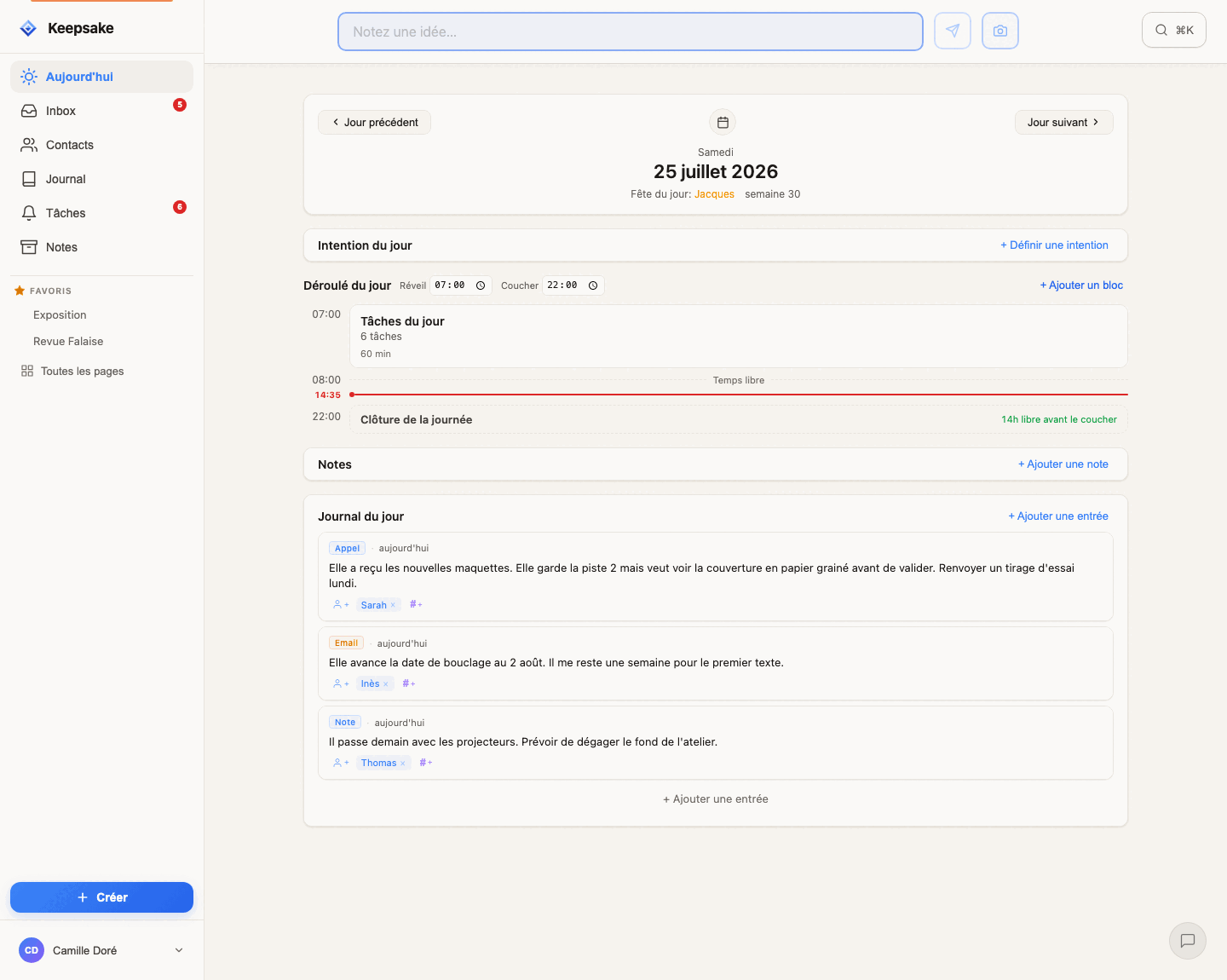
Vos tâches du jour
Toutes les tâches prévues pour aujourd'hui apparaissent ici, ainsi que les tâches en retard et les tâches prioritaires ASAP. Les tâches récurrentes sont projetées automatiquement — pas besoin de les créer manuellement (et vous pouvez ouvrir une tâche récurrente ici même pour ajuster ses paramètres de récurrence). Complétez une tâche en la cochant, reportez-la à plus tard avec le snooze, ou réordonnez votre liste par glisser-déposer selon vos priorités — la première tâche de la liste est la plus importante.
Le déroulé du jour
Entre votre intention et le journal du jour, la timeline vous permet de composer la journée comme une suite de blocs de temps — vos tâches vivant dans un bloc dédié. Elle mérite son propre guide : voir Organisez votre journée en blocs de temps.
Numéro de semaine
Le numéro de semaine ISO est affiché en haut pour que vous sachiez toujours où vous en êtes dans l'année.
Naviguez vers n'importe quel jour
Utilisez les flèches pour avancer ou reculer d'un jour à la fois. Utilisez le mini calendrier pour sauter directement à une date précise. Les jours qui contiennent déjà du contenu (tâches, notes ou entrées) sont marqués par de petits points, pour repérer les journées chargées d'un coup d'œil.
Astuce
Faites d'Aujourd'hui votre premier écran chaque matin. Un coup d'œil rapide vous dit tout ce sur quoi vous concentrer — pas de tri d'inbox, pas de changement d'app, juste de la clarté.
L'intention ou question du jour
Un mantra
Une phrase courte à porter toute la journée. « Moins, mais mieux. » — « Lentement, c'est sûrement. »
Une intention
La manière dont vous voulez être présent — au présent, et à propos de vous. « Être patient avec l'équipe. » — « Rester calme pendant la réunion. »
Une priorité unique
La seule chose qui ferait de la journée une réussite. « Livrer le prototype, rien d'autre. »
Une question à garder en tête
Vous n'y répondez pas dans le champ — vous la laissez travailler pendant la journée. « Qu'est-ce qui compte vraiment aujourd'hui ? » — « Quel geste ferais-je différemment si personne ne devait jamais le voir ? » Revenez-y le soir pour voir ce qu'elle a changé.
Posez-la, retrouvez-la, changez-la
Cliquez sur Définir une intention (avant midi, le bouton dit Commencez la journée par une intention), tapez une ligne courte et validez avec Entrée — Échap annule. Votre ligne est ensuite visible à trois endroits : la vue Aujourd'hui, le Journal (sous l'en-tête de chaque jour) et la barre latérale droite (sous le numéro de semaine), qui propose aussi un lien en un clic tant que la ligne du jour est vide. Les intentions ne sont pas des contrats : si la journée change et que la ligne ne colle plus, réécrivez-la.
Astuce
Une bonne ligne est courte, au présent, et parle de vous — pas du monde. « Rester calme pendant la réunion » marche mieux que « Avoir une réunion calme » : vous ne contrôlez que la première. Même chose pour les questions : interrogez votre propre geste, pas ce que les autres feront.
Anniversaires & fêtes
Anniversaires
Les contacts dont c'est l'anniversaire aujourd'hui sont mis en valeur avec des badges ambre. Cliquez sur n'importe quel nom pour accéder directement à son profil de contact.
Fêtes du jour (saints du jour)
Les contacts dont le prénom correspond au saint du jour apparaissent avec des badges violets. Cette fonctionnalité utilise un calendrier intégré des fêtes françaises et fonctionne automatiquement — aucune configuration nécessaire.
Astuce
Un petit « Bonne fête ! » peut illuminer la journée de quelqu'un — et Keepsake fait en sorte que vous ne manquiez jamais l'occasion.
Snooze : reporter une tâche
Options rapides
Demain, Lundi prochain, Dans une semaine, Le 1er du mois prochain — un seul clic et la tâche est reprogrammée instantanément. Parfait pour ce qui peut attendre quelques jours.
Horizons plus lointains
Dans un mois, Dans 3 mois, Dans 6 mois, Début d'année prochaine, Dans un an — pour ce qui est important mais pas urgent. La tâche resurface exactement quand vous en avez besoin.
Changer la priorité
ASAP passe la tâche en priorité urgente (pas de date précise — elle apparaît chaque jour jusqu'à ce qu'elle soit faite). Un jour peut-être la déplace dans votre backlog, hors de la vue quotidienne mais toujours dans votre liste de tâches.
Date personnalisée
Choisissez n'importe quelle date précise depuis un sélecteur de calendrier. Utilisez cette option quand aucun des raccourcis ne convient — par exemple, pour reporter une tâche au jour d'une réunion spécifique.
Astuce
Snoozer n'est pas procrastiner — c'est décider quand vous serez le plus efficace. Une tâche reportée au bon jour est faite plus vite qu'une tâche qui reste ignorée sur la liste d'aujourd'hui.
La vue Journal
Tout dans une seule timeline
Les entrées de tous vos contacts, les tâches complétées chaque jour et les tâches en attente sont toutes visibles dans un seul fil défilable, organisé par jour. Chaque jour affiche son intention du jour (s'il y en a une) en haut, suivie des entrées et des tâches.
Défilez pour charger plus
Le Journal affiche initialement les 7 derniers jours. Continuez à faire défiler vers le bas pour charger plus d'historique — aussi loin que nécessaire.
Jours futurs
Utilisez le bouton ^ en haut du Journal pour révéler demain ou après-demain. Utile pour la planification — ajoutez une entrée ou une tâche à une date future avant qu'elle n'arrive.
Naviguez par date
Cliquez sur l'en-tête de date de n'importe quel jour pour l'ouvrir dans la vue Aujourd'hui. Utilisez le mini calendrier en haut pour sauter directement à une date précise. Les jours avec du contenu sont marqués par des points.
Astuce
Avant une réunion importante, faites défiler le Journal pour rafraîchir votre mémoire sur les interactions récentes. C'est le moyen le plus rapide de vous mettre à jour.
Ajouter du contenu à un jour
Depuis la vue Aujourd'hui
Utilisez le bouton « + Ajouter » pour créer une nouvelle entrée ou tâche pour le jour affiché. L'entrée ou la tâche est immédiatement rattachée à cette date.
Depuis le Journal
Chaque jour dans le Journal possède un bouton +. Cliquez dessus pour ajouter une entrée ou une tâche à ce jour précis — même pour des jours passés. Vous avez oublié de noter un appel de la semaine dernière ? Faites défiler jusqu'à ce jour et ajoutez-le directement.
Édition inline
Les entrées et les tâches peuvent être modifiées directement sans quitter la vue. Cliquez sur l'icône d'édition sur n'importe quelle carte pour modifier son contenu, ses contacts, ses tags ou sa date.
Le mini calendrier
Points d'activité
Les jours qui contiennent du contenu (tâches, entrées ou notes) sont marqués par de petits points sous le numéro de date. Cela vous permet de repérer les jours actifs d'un coup d'œil sans faire défiler.
Navigation rapide
Cliquez sur n'importe quelle date dans le mini calendrier pour y sauter directement. Utilisez les flèches pour naviguer entre les mois.
Raccourci
Appuyez sur l'en-tête de date dans la vue Aujourd'hui pour ouvrir ou fermer le mini calendrier.
Aujourd'hui vs. Journal — quand utiliser quoi ?
Vous commencez votre journée ?
Utilisez Aujourd'hui. Elle ne montre que ce qui compte maintenant : vos tâches, les retards, les anniversaires et l'intention du jour. Pas de distraction par les jours passés ou futurs.
Vous passez en revue le passé ?
Utilisez le Journal. Faites défiler les jours précédents pour voir ce qui s'est passé, ce qui a été complété et ce qui a été enregistré. Idéal pour les revues hebdomadaires ou la préparation d'une réunion.
Vous ajoutez du contenu pour aujourd'hui ?
L'une ou l'autre fonctionne. Les deux vues vous permettent de créer des entrées et des tâches pour le jour en cours. Utilisez celle que vous avez déjà sous les yeux.
Vous ajoutez du contenu pour un autre jour ?
Utilisez le Journal. Faites défiler jusqu'à la date voulue et cliquez sur + pour ajouter une entrée ou une tâche. La vue Aujourd'hui n'affiche qu'un seul jour à la fois, le Journal est donc plus pratique pour naviguer entre les dates.
Des questions ?
Guides connexes
Organisez votre journée en blocs de temps
Planifiez votre journée comme une suite de blocs de temps dans le déroulé du jour de Keepsake. Réglez vos heures de réveil et de coucher, empilez des blocs avec une durée, ancrez des tâches à une heure — les heures se calculent toutes seules et s'adaptent quand la journée évolue.
Bien démarrer avec Keepsake
Configurez votre compte Keepsake et commencez à organiser vos relations, notes et tâches en quelques minutes. Guide pas à pas pour débutants.
Tâches & Time Blocks : Planifiez sans culpabilité
Apprenez à gérer vos tâches avec le système unique de time blocks de Keepsake. Planifiez votre journée avec des blocs successifs au lieu d'horaires rigides. Fini plus tôt ? Vous êtes libre. Besoin de plus de temps ? Décalez simplement.
Notes : capturer, traiter et organiser
Comprenez le cycle de vie complet des notes dans Keepsake. De la capture rapide dans l'Inbox à l'archivage, la transformation en tâches ou entrées, et leur affichage sur les profils de contacts et les pages de tags.
Cet article vous a-t-il aidé ?
Il manque quelque chose ? Suggérer une amélioration
Prêt à essayer Keepsake ?
Commencez à organiser vos relations, notes et tâches dès aujourd'hui. Gratuit pendant 30 jours.
Un clic — vous y êtes. Pas de carte bancaire. 30 jours gratuits.