
Capturer une tâche en quelques secondes — et transformer une note en action
Vous êtes en réunion, en pleine conversation — et quelqu'un vous confie une tâche. Vous dites oui, vous la notez mentalement, et vous continuez. Deux heures plus tard : envolée. Keepsake résout ça avec une seule habitude : capturer d'abord, organiser ensuite. Que vous utilisiez une QuickNote ou le raccourci T+, une tâche peut être enregistrée en moins de trois secondes — sans couper votre élan.
Capturer une note
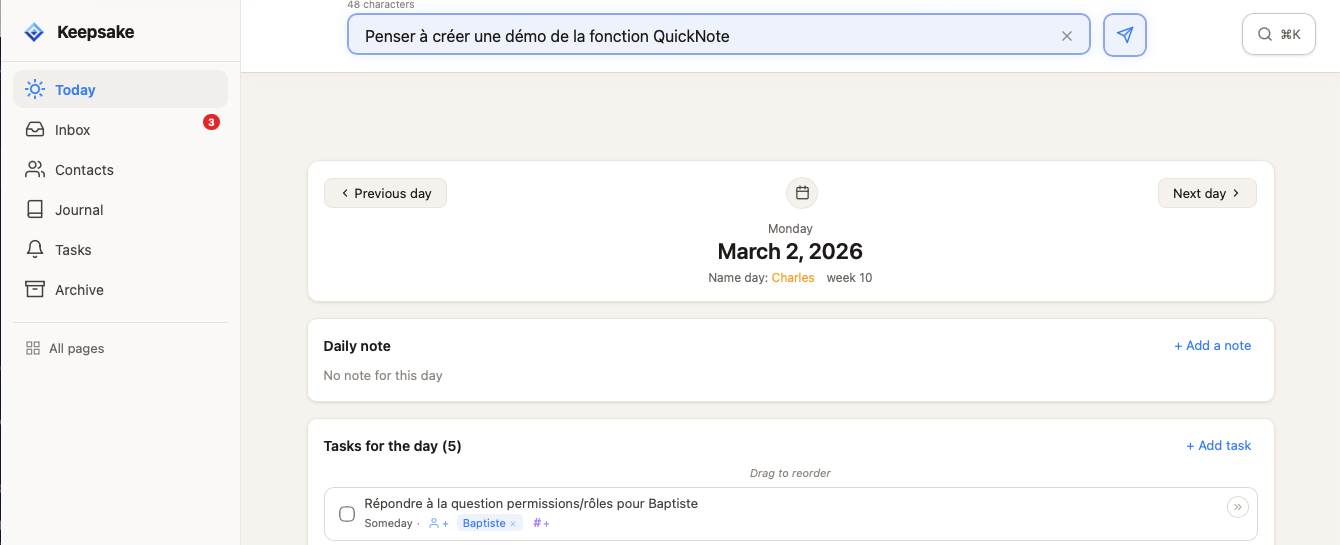
Ouvrez Keepsake
Sur votre téléphone ou ordinateur — la barre QuickNote est la première chose que vous voyez.
Tapez votre note
Écrivez ce qui doit être retenu. Pas de dossier, pas de catégorie — il suffit de taper.
Appuyez sur Entrée
Votre note est enregistrée instantanément. Vous pouvez fermer l'application aussitôt. La pensée est en sécurité.
Astuce
Si vous êtes en pleine conversation, ça prend moins de trois secondes. Vous restez présent — et rien ne passe à la trappe.
Retrouver votre note dans l'Inbox
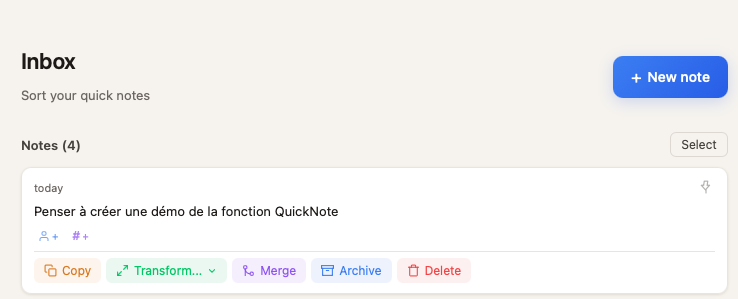
Ouvrez votre Inbox
Toutes les notes non traitées apparaissent ici, dans l'ordre où elles ont été capturées.
Localisez votre note
Faites défiler ou cherchez la note capturée précédemment.
Transformer une note en tâche
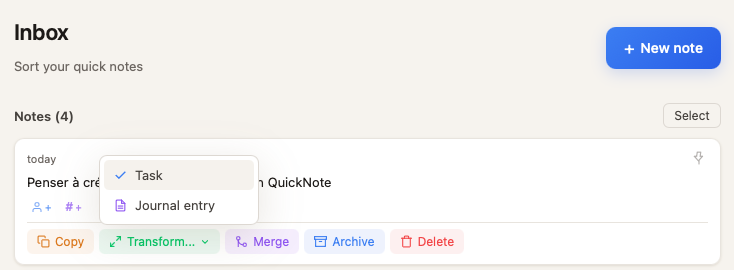
Cliquez sur le bouton « Transformer »
Survolez votre note dans l'Inbox et cliquez sur le bouton Transformer.
Sélectionnez « Tâche »
Choisissez Tâche parmi les options qui apparaissent.
Vérifiez et enregistrez
Le formulaire de tâche s'ouvre prérempli avec votre note. Ajoutez une date d'échéance, liez un contact ou attribuez un tag — puis enregistrez.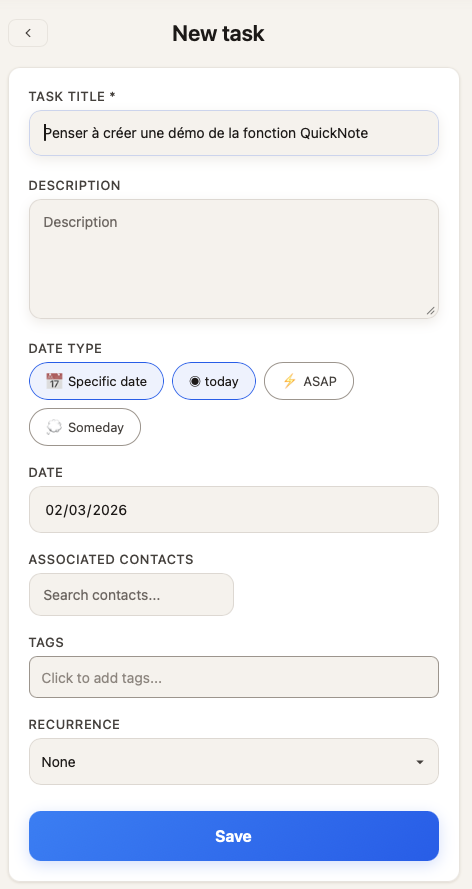
Astuce
Vous pouvez aussi ajouter un contact ou un tag à cette étape — la tâche est déjà liée et organisée avant même d'apparaître dans votre journée.
Créer une QuickTask avec T+

Tapez votre tâche avec un raccourci T+
Exemple : Envoyer un email à Baptiste T+1 — cela crée une tâche planifiée pour demain.
Appuyez sur Entrée
La tâche est créée instantanément — elle va directement dans votre liste de tâches, pas dans votre Inbox.
Raccourci
T+0 = aujourd'hui · T+1 = demain · T+3 = dans 3 jours · T+ASAP = urgent · T+? = un jour peut-être
Guides connexes
Capturez vos idées instantanément avec QuickNotes
Apprenez à utiliser QuickNotes pour capturer vos pensées, idées et rappels en quelques secondes. Fonctionne hors ligne, se synchronise automatiquement et se connecte à vos contacts.
Tâches & Time Blocks : Planifiez sans culpabilité
Apprenez à gérer vos tâches avec le système unique de time blocks de Keepsake. Planifiez votre journée avec des blocs successifs au lieu d'horaires rigides. Fini plus tôt ? Vous êtes libre. Besoin de plus de temps ? Décalez simplement.
Cet article vous a-t-il aidé ?
Il manque quelque chose ? Suggérer une amélioration
Prêt à essayer Keepsake ?
Commencez à organiser vos relations, notes et tâches dès aujourd'hui. Gratuit pendant 30 jours.
Un clic — vous y êtes. Pas de carte bancaire. 30 jours gratuits.