
The publishing flow: from idea to published note
Some notes are just references — a recipe, a code, a quote. Others are ideas you'd like to share one day on your Keepsake Page, once you've worked on them. The publishing flow lets those notes travel a clear path, at your own pace: Idea → In progress → To review → Ready → Published. It's entirely optional, and its stages are yours to rename, recolor, add or remove.
The stages of the flow
Idea
The seed of a text you might publish. It's the first stage: Keep to publish puts the note here.
In progress
You're writing, gathering, shaping. This stage replaces the former Draft: notes that were drafts are now In progress.
To review
The note is written and needs a re-read — to check the wording, trim, verify.
Ready
Reviewed and ready to go: it waits for the right moment.
Published
When a note is published on your Keepsake Page, it moves to Published automatically and stays there as long as it's online. You can also set this stage yourself for a text you published elsewhere (your blog, a newsletter).
Tip
These five stages are only a starting point. Rename them, add your own or remove those you don't use — see Customize your stages.
Put a note into the flow
Keep to publish
On every note in the Inbox, next to Keep as note, the Keep to publish button (To publish on a phone) keeps the note and puts it into the flow at the first stage, Idea. On a computer, the U key does the same.
Several notes at once
In the Inbox, select several notes, then click To publish: they all enter the flow together.
A note you already kept
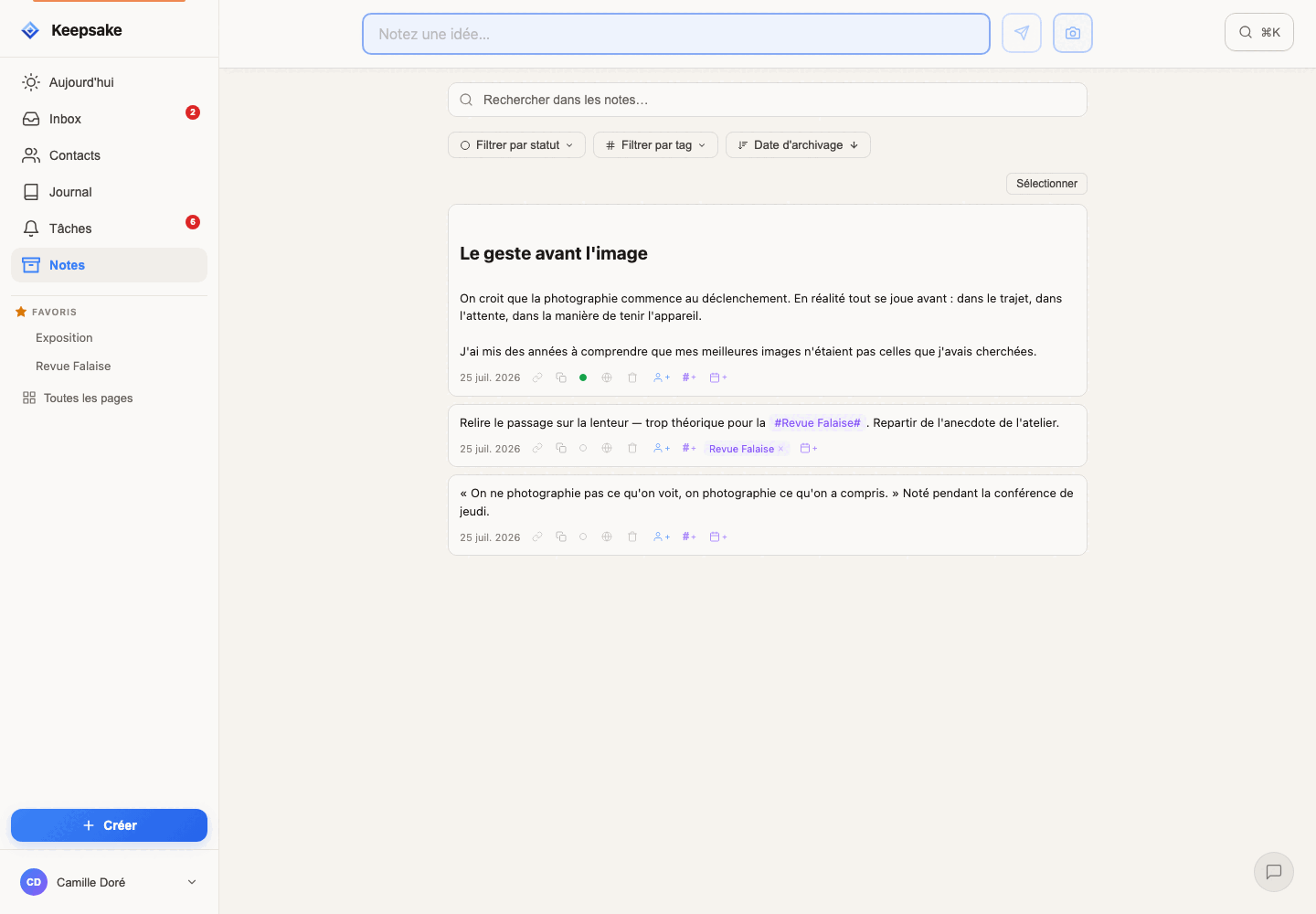
In the Notes view, a note outside the flow shows a small empty circle among its actions (on a computer, when you hover over it). Click it and choose a stage.
Move a note from one stage to the next
Click the badge
A small menu lists the stages in order, the current one highlighted. Pick any stage — forward or back — or No status to take the note out of the flow.
One step forward
In an open note, the Move to: To review button (it always names the next stage) moves the note one step forward in a single click.
Several notes together
In the Notes view, select the notes, click Stage and choose where to move them: they all change together.
Published notes
A note published on your Keepsake Page stays at Published: its badge can't be changed as long as the note is online. To take it out of this stage, unpublish it.
See where your writing stands: the flow bar
Publishing: what you're working on
Choose Publishing to see every note in the flow that isn't published yet, grouped by stage — from the most advanced to the most recent.
One stage at a time
Click a stage to see only its notes; click it again to come back to All. On a computer, ⌘-click (Ctrl-click on Windows) adds or removes a stage to combine several.
Find what's almost ready
Ready before a publishing session, To review when you have ten minutes to polish, No status to rediscover your reference notes.
Tip
The flow is a way to think, not a rule to obey. Use the stages that help you — a note can go straight from Idea to Published if that's how you work.
Customize your stages
Rename a stage and change its color
Type a new name directly in the stage's field, and click the color square next to it to pick another one: badges and the flow bar follow immediately.
Add a stage
Your way of working has a step the default flow doesn't? Add it: Layout, Illustrations…
Remove the stages you don't use
If the stage still contains notes, Keepsake asks you where to move them before removing it. Nothing is lost.
Always one Published stage
There is always exactly one Published stage. It stays last and can't be removed: that's where your published notes land. You can still rename it and change its color.
Why the Inbox shows no stages
The Inbox is for fast sorting
In the Inbox, you read quickly, decide, and move on: keep as note, keep to publish, task, journal, delete. Notes there never carry a stage — Keep to publish simply sends the note into the flow, and it leaves the Inbox.
The Notes view is the workshop
This is where you take your time: you reread, refine, and move your notes from stage to stage until they're published.
Publishing right away still works
For a finished fragment (a photo, a quote), the Publication item of a note's “…” menu in the Inbox publishes it directly on your Keepsake Page — it then goes to Published.
With your AI assistant
Questions?
Related guides
Notes: Capture, Process, and Organize
Understand the full lifecycle of notes in Keepsake. From quick capture in the Inbox to keeping them as notes, turning them into tasks or entries, and finding them on contact profiles and pages.
The Inbox: Sort Your Quick Notes
Jot now, sort later. Keep each QuickNote as a note, turn it into a task or add it to your journal, merge fragments, pin what matters and reach Inbox Zero.
Your Keepsake Page — Publish Notes Publicly
Share notes with the world from your Keepsake Page. Learn how to set up your username, add a bio and links, publish notes in one click, and manage what's public.
Sharing a Published Post — Links, Socials, Images
Share your Keepsake posts everywhere without OAuth, without a marketing stack. Copy the link, open a prefilled compose on X / Threads / Bluesky / LinkedIn, or download ready-to-post vertical images — four styles tailored to each kind of post.
Was this article helpful?
Something missing? Suggest an improvement
Empty your head. Free your creativity.
Jot a thought down in three seconds, find it again when it matters, share what deserves to be read. Your ideas, your people and your projects — finally in one place.
One click — you're in. No credit card. 30 days free.