
Your Day: the Today View in Keepsake
Keepsake opens on Today — on purpose. One screen tells you what matters now: the line you want to carry through the day, the tasks that are due, how your hours are shaping up, and what already happened. Nothing to rebuild each morning, nothing that slips away overnight: late tasks come to you on their own. Start clear, finish calm. The Journal then lets you scroll back through every day that came before.
The Today view at a glance
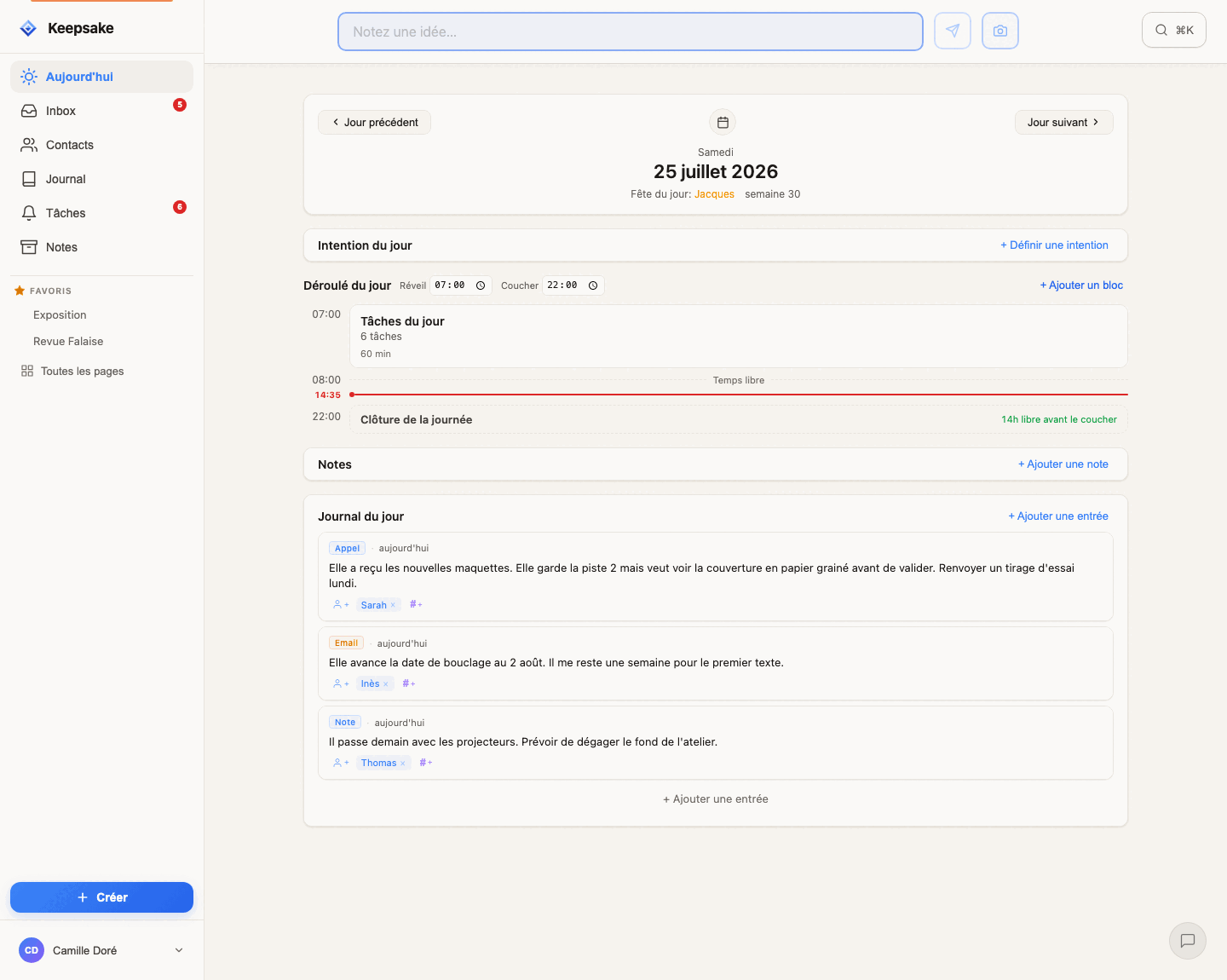
The header
The date, the ISO week number, and the name day of the day. The ‹ and › buttons (Previous day / Next day) move one day at a time — on another day, Today brings you back; the calendar icon opens the mini calendar. Birthdays and name days of your contacts show up just below, as small chips — see Birthdays & name days.
Today's intention or question
One short line to set the tone. See The intention or question of the day.
Day timeline
Your day as a sequence of blocks, from Wake to Bed, with your Today's tasks block inside. See Day timeline.
Day's notes
The notes you attached to this date — meeting prep, what to bring, thoughts for that day. See Notes of the day.
Daily journal
The entries of the day: calls, meetings, messages, moments. See Daily journal.
Tip
Make Today your first screen every morning. One glance, and you know what to focus on — no sorting, no app switching, just clarity.
The intention or question of the day
A mantra
A short phrase you want to carry through the day. "Less, but better." — "Slow is smooth, smooth is fast."
An intention
How you want to show up — present tense, about you. "Be patient with the team." — "Stay calm through the meeting."
A single priority
The one thing that would make the day a success. "Ship the prototype, nothing else."
A question to keep in mind
You don't answer it in the field — you let it work on you during the day. "What really matters today?" — "What would I do differently if no one ever saw it?" Come back to it in the evening and see what it changed.
Set it, change it, bring one back
Click the intention, or Set an intention when there's none (in the morning the invitation reads Start the day with an intention), and type one short line. Enter or a click elsewhere keeps it, Escape cancels. Each intention belongs to its day: tomorrow starts with a blank line, and you write the next one by hand — that small effort is what makes it stick. To remove it, empty the line. A long intention shows on two lines at most; click it to read or edit it in full. Your line also shows in the right sidebar (under the week number), and in the Journal on the days you wrote it.
Tip
A good line is short, present-tense, and about you — not about the world. "Stay calm through the meeting" works better than "Have a calm meeting": you only control the first. Same for questions: ask about your own next move, not about what others will do.
Today's tasks: nothing gets left behind
What you'll find there
Tasks due today, overdue tasks, ASAP tasks (no date, they stay until done), and occurrences of your recurring tasks, which are projected automatically. Tasks created on the fly with T+0 in the capture bar land here too.
Order is priority
Open the block and drag tasks to reorder them — the first task in the list is your most important one. To add some, type them in the line at the bottom of the block, one after another (or press A from the timeline).
Check off, open, or push back
Check a task off when it's done, open it to edit its date, people or pages, or push it to a better day with Snooze.
Tip
Tasks linked to a person with @ also appear on that person's profile — handy right before you call them.
Day timeline
Blocks follow each other
Finish early and you're free; run late and the next blocks simply shift. The timeline asks "what comes next?", not "what happens at 2pm?".
Day close
The last line of the timeline, at your bedtime, is the Day close. It tells you how much free time is left before bed — or by how much the day overruns. A quiet way to see, at a glance, whether the day you planned fits in the day you have.
Tip
The timeline deserves its own guide: see Organize your day in time blocks.
Notes of the day
Add a note to the day
Click + Add note next to the section title. The note is created already attached to that date. You can also attach any existing note with the /date command — see Link notes to dates.
Move it or detach it
Plans change. Move to another day sends the note to a new date; Remove from this day detaches it without deleting anything.
Tip
Notes of the day are the place for things you want to read on that day. If it's something to do, make it a task instead.
Daily journal
Log what happened
Click + Add entry, choose the type (call, message, meeting…), write a line, and link the people involved. The entry immediately joins their relationship history.
From a QuickNote
Captured something on the fly? In the Inbox, To journal (shortcut J) turns the note into an entry, keeping its people and pages.
Tip
Two lines logged tonight are worth more than a perfect memory next year. That's how you become the person who remembers.
Birthdays & name days
Birthdays
Contacts whose birthday is that day appear as a chip with a cake icon, just below the date. Click a name to open their contact profile. Upcoming birthdays (next 14 days) are also listed in the right sidebar — see Birthday reminders.
Name days
Contacts whose first name matches the saint of the day appear the same way, with a party icon — and the name day itself is shown next to the week number. Keepsake uses a built-in calendar of French name days — no setup required.
Tip
A quick "Happy name day!" message can make someone's day — and Keepsake makes sure you never miss the occasion.
Snooze a task to a better day
Near term
Today, Tomorrow, Next Monday, In one week, 1st of next month.
Further out
In one month, In 6 months, Start of next year, In one year — for what matters but isn't urgent. The task resurfaces exactly when it should. For these date options, Keepsake shows the exact target date and asks you to confirm.
Without a date
ASAP keeps the task in front of you every day until it's done. Someday takes it out of your days while keeping it in your task list.
A specific date
Choose a date… opens a date picker — useful to push a task to the day of a specific meeting.
Tip
Snoozing isn't procrastinating — it's deciding when you'll be most effective. A task pushed to the right day gets done faster than one sitting ignored on today's list.
The Journal view
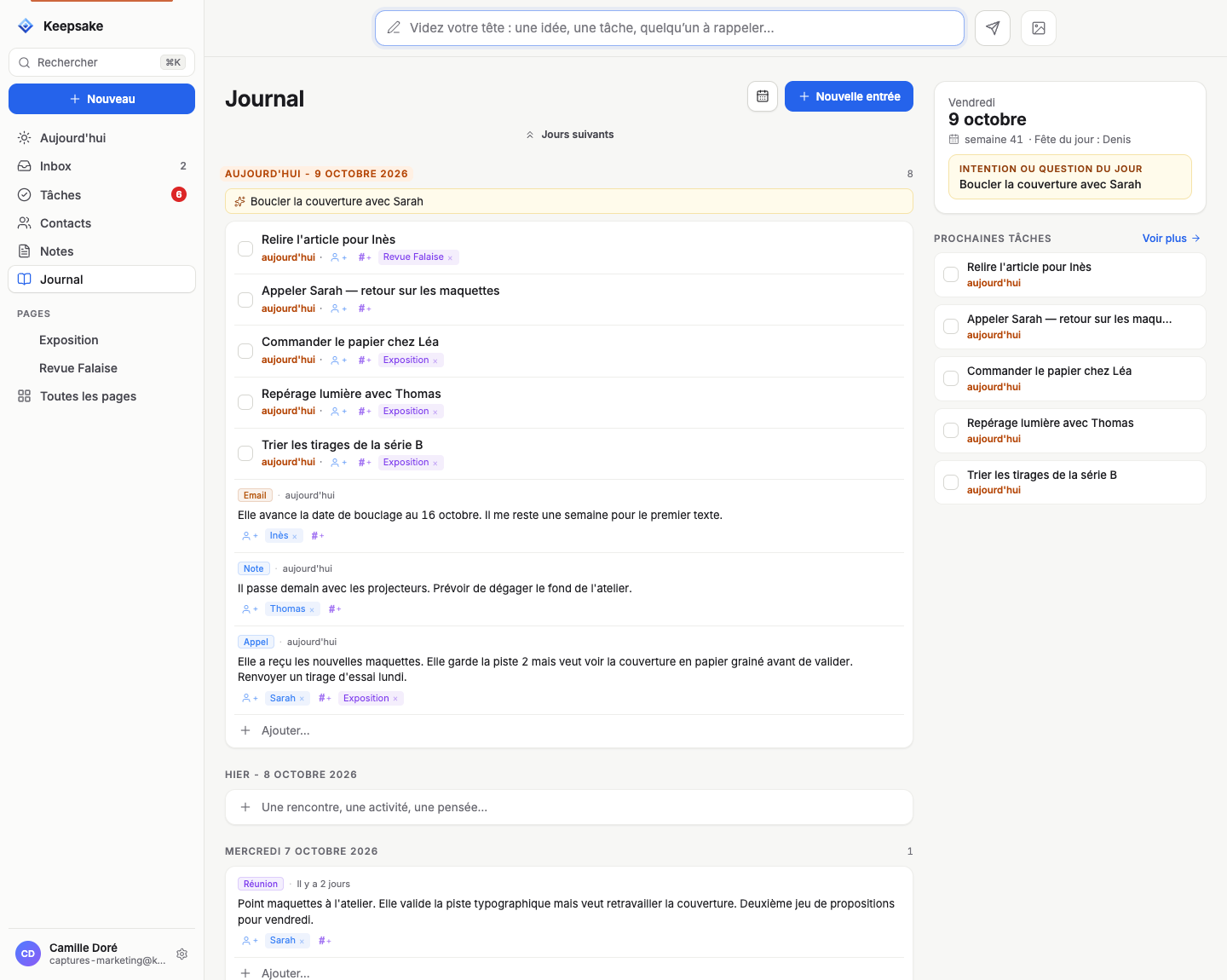
Everything in one timeline
Entries from all contacts, tasks completed each day and pending tasks sit in a single scrollable feed. Each day shows its intention (if any) at the top, followed by entries and tasks.
Scroll to load more
Keep scrolling down to load more history — as far back as you need.
Future days
Use the Next days button at the top of the Journal to reveal tomorrow, then the day after. Useful to prepare — add an entry or a task to a future date before it arrives.
Navigate by date
Click a day's header to open that day in the Today view. Use the mini calendar (calendar icon at the top) to jump straight to any date — and once you've scrolled away, Back to today brings you back.
Tip
Before an important meeting, scroll through the Journal to refresh your memory of recent exchanges. It's the fastest way to get back up to speed.
Adding content to any day
From the Today view
+ Add entry in the Daily journal, + Add note in Day's notes, Add a block in the Day timeline. Everything is attached to the date displayed.
From the Journal
Each day in the Journal has a + Add… line: choose An entry or A task to add it to that specific day — even a past one. Forgot to log a call from last week? Scroll to that day and add it right there.
Inline editing
Entries and tasks can be edited in place: click a card to change its content, people, pages or date.
The mini calendar
Activity dots
Days that contain content (tasks, entries or notes) are marked with small dots, so you spot busy days at a glance.
Quick navigation
Click any date to jump to it. Use the arrows to move between months.
Shortcut
Click the calendar icon in the Today header to open or close the mini calendar.
Today vs. Journal — when to use which?
Starting your day?
Use Today. It shows only what matters now: your intention, your tasks (late ones included), your timeline, birthdays. No noise from other days.
Looking back?
Use the Journal. Scroll back through days to see what happened, what got done and what was logged. Great for a weekly review or to prepare a meeting.
Adding something to another day?
Either works: navigate to the date in Today, or scroll to it in the Journal and click + Add….
Questions?
Related guides
Organize your day in time blocks
Plan your day as a sequence of time blocks in Keepsake's Day timeline. Set your wake and bed times, stack blocks with durations, anchor tasks to a time — hours compute themselves and adjust as your day evolves.
Tasks & Time Blocks: Plan Your Day Without Guilt
Learn how to manage tasks with Keepsake's unique time block system. Plan your day with sequential blocks instead of rigid schedules. Finish early? You're free. Need more time? Just shift.
Notes & Dates — Link a Note to a Day
Attach a note to one or more days and find it again at the right moment. Type /date in plain language, add a date pill, or create a note straight from a day view. Inspired by daily notes, built for the way you plan.
Entries: Build Your Relationship History
Learn how to use entries in Keepsake to log meetings, calls, and exchanges. Link entries to contacts and pages to build a complete relationship history.
Contact Profiles: Your Relational Memory
Your relational memory: every exchange logged by type, linked notes and tasks, @mentions and birthday reminders for the people who matter.
The Inbox: Sort Your Quick Notes
Jot now, sort later. Keep each QuickNote as a note, turn it into a task or add it to your journal, merge fragments, pin what matters and reach Inbox Zero.
Was this article helpful?
Something missing? Suggest an improvement
Empty your head. Free your creativity.
Jot a thought down in three seconds, find it again when it matters, share what deserves to be read. Your ideas, your people and your projects — finally in one place.
One click — you're in. No credit card. 30 days free.