
Capture a Task in Seconds — and Turn Any Note into an Action
You're in a meeting, mid-conversation — and someone assigns you a task. You say yes, mentally note it, and move on. Two hours later: gone. Keepsake solves this with a single habit: capture first, organize later. Whether you use a QuickNote or the T+ shortcut, a task can be saved in under three seconds — without breaking your flow.
Capture a note
Open Keepsake
On your phone or computer — the QuickNote bar is the first thing you see.
Type your note
Write whatever needs to be remembered. No folder, no category — just type.
Press Enter
Your note is saved instantly. You can close the app right away. The thought is safe.
Tip
If you're in the middle of a conversation, this takes less than three seconds. You stay present — and nothing falls through the cracks.
Find your note in the Inbox
Open your Inbox
All unprocessed notes appear here, in the order they were captured.
Locate your note
Scroll or search for the note you captured earlier.
Transform a note into a task
Hover over the note
On a computer, the sort buttons appear when you hover over a note in the Inbox. On a phone, they're always visible under the note.
Click "Task"
Click Task. (The other options — Keep as note, Keep to publish, To journal, and in the ⋯ menu Create linked task and Publication — are explained in Sorting your Inbox.)
Review and save
The New task panel opens pre-filled with your note. Add a due date, link a contact, or link a page — then save. The note leaves the Inbox once the task is saved.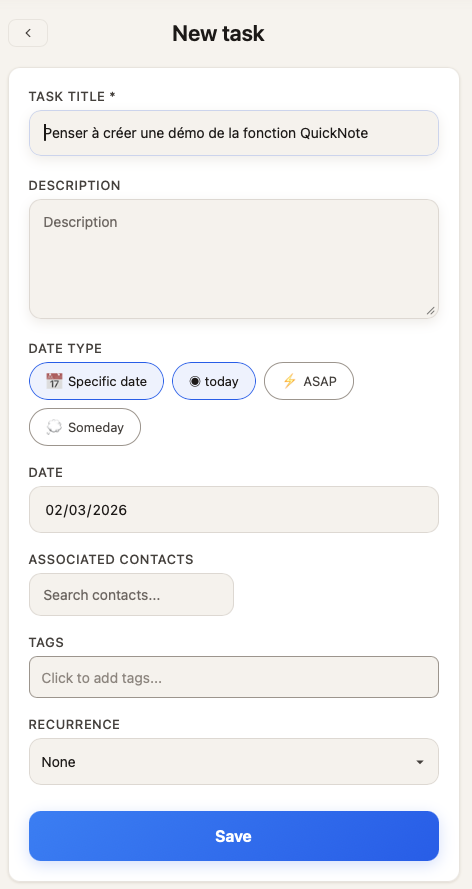
Tip
Want to keep the note as well? Choose Create linked task in the note's ⋯ menu instead: the note stays, and the new task is linked to it.
Create a QuickTask with T+

Type your task with a T+ shortcut
Example: Send Baptiste an email T+1 — this creates a task scheduled for tomorrow.
Press Enter
Keepsake confirms with Task created for… and the date. The task goes directly to your task list, not your Inbox. Note that T+ only works at capture time: for a note already in the Inbox, use the Task button as above.
Shortcut
T+0 = today · T+1 = tomorrow · T+3 = in 3 days · T+ASAP = until done · T+? = someday
Related guides
The Inbox: Sort Your Quick Notes
Jot now, sort later. Keep each QuickNote as a note, turn it into a task or add it to your journal, merge fragments, pin what matters and reach Inbox Zero.
Capture Ideas Instantly with QuickNotes
Learn how to use QuickNotes to capture thoughts, ideas, and reminders in seconds. Works offline, syncs automatically, and connects to your contacts.
Tasks & Time Blocks: Plan Your Day Without Guilt
Learn how to manage tasks with Keepsake's unique time block system. Plan your day with sequential blocks instead of rigid schedules. Finish early? You're free. Need more time? Just shift.
Your Day: the Today View in Keepsake
Start clear, finish calm: your intention, today's tasks (overdue and ASAP included), your day timeline, your journal, birthdays and snoozing.
Was this article helpful?
Something missing? Suggest an improvement
Empty your head. Free your creativity.
Jot a thought down in three seconds, find it again when it matters, share what deserves to be read. Your ideas, your people and your projects — finally in one place.
One click — you're in. No credit card. 30 days free.